Make a Payment from a Payment Link
Outline
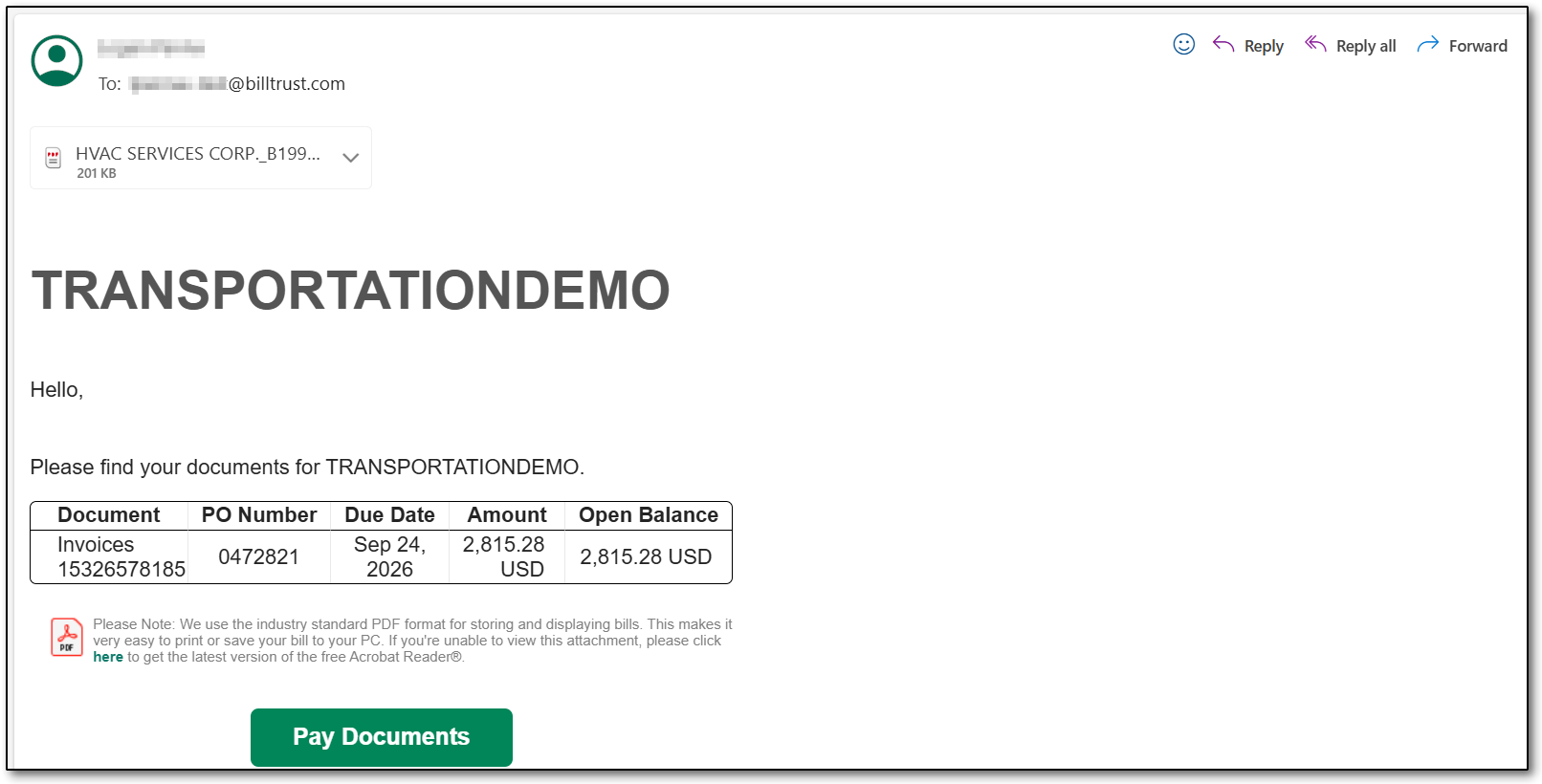
Step 1: Enter the B2B Checkout
From the payment email, click: Pay Documents to enter the checkout.
Step 2: Confirm or Edit Payment Details
Provide an email address for the payment receipt confirmation.
Depending on system settings, you may be able to: remove documents or edit the payment amount.
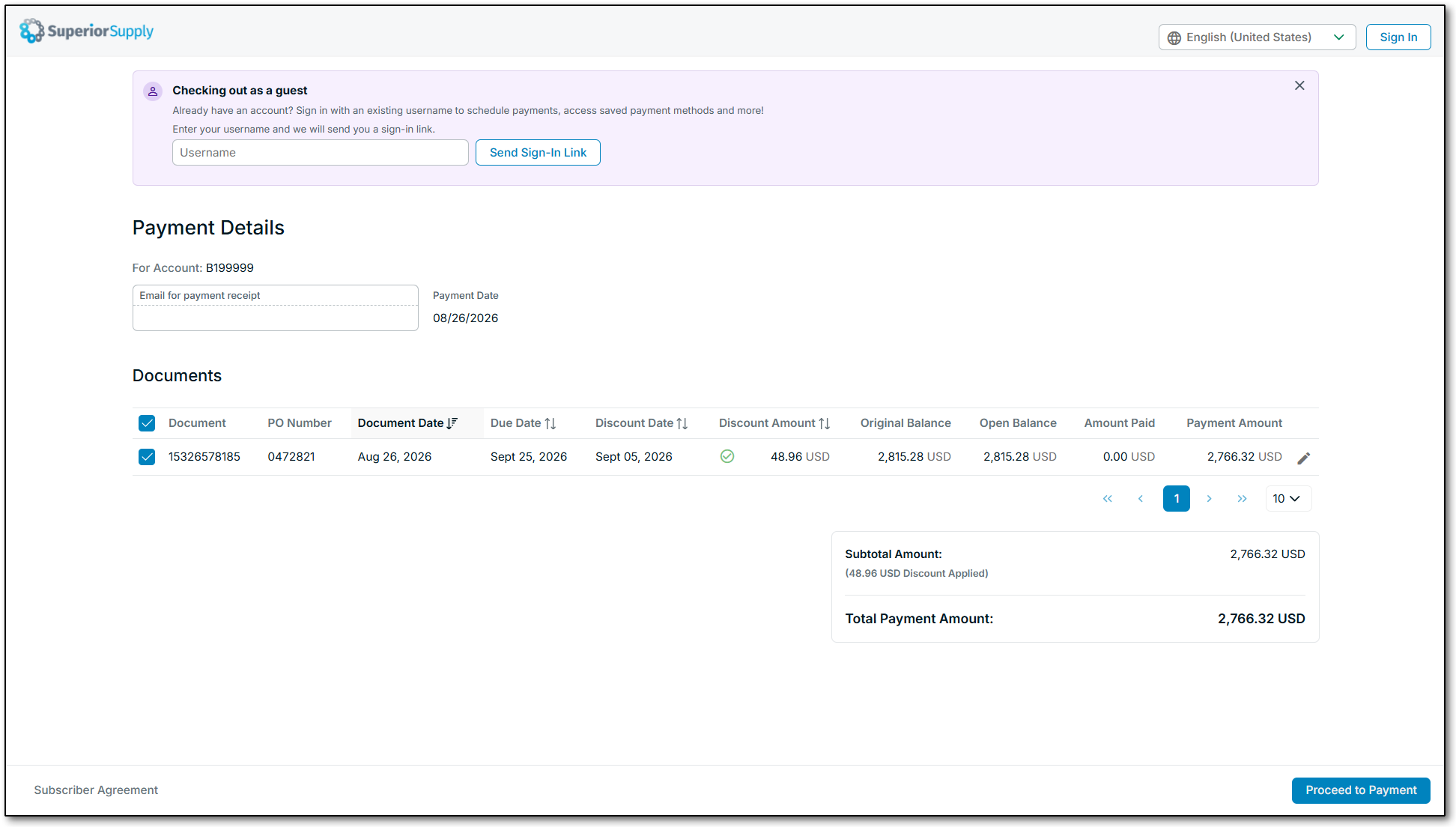
Tip: If you already have an account for the checkout, enter your username to receive a sign-in link for a faster experience.
Step 3: Add a New Payment Method (optional)
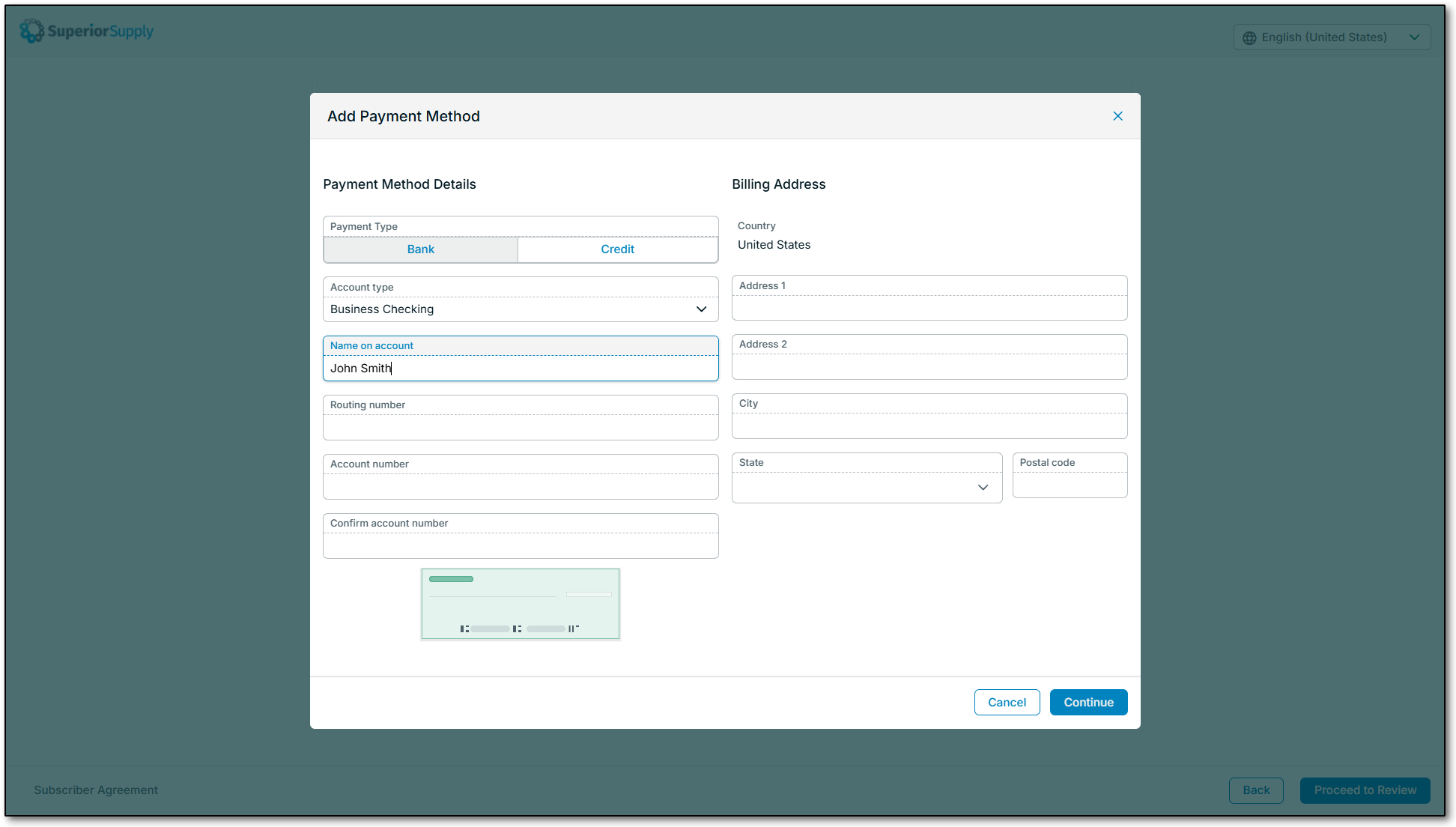
If this is your first time paying in the portal or you want to use a different payment method than the one already saved, complete the Payment Method Details form to add the new payment method, then click: Continue.
Step 4: Select or Confirm Payment Method
Select a payment method and provide any additional information (ex. CVV number for a card payment), then click: Proceed to Review.
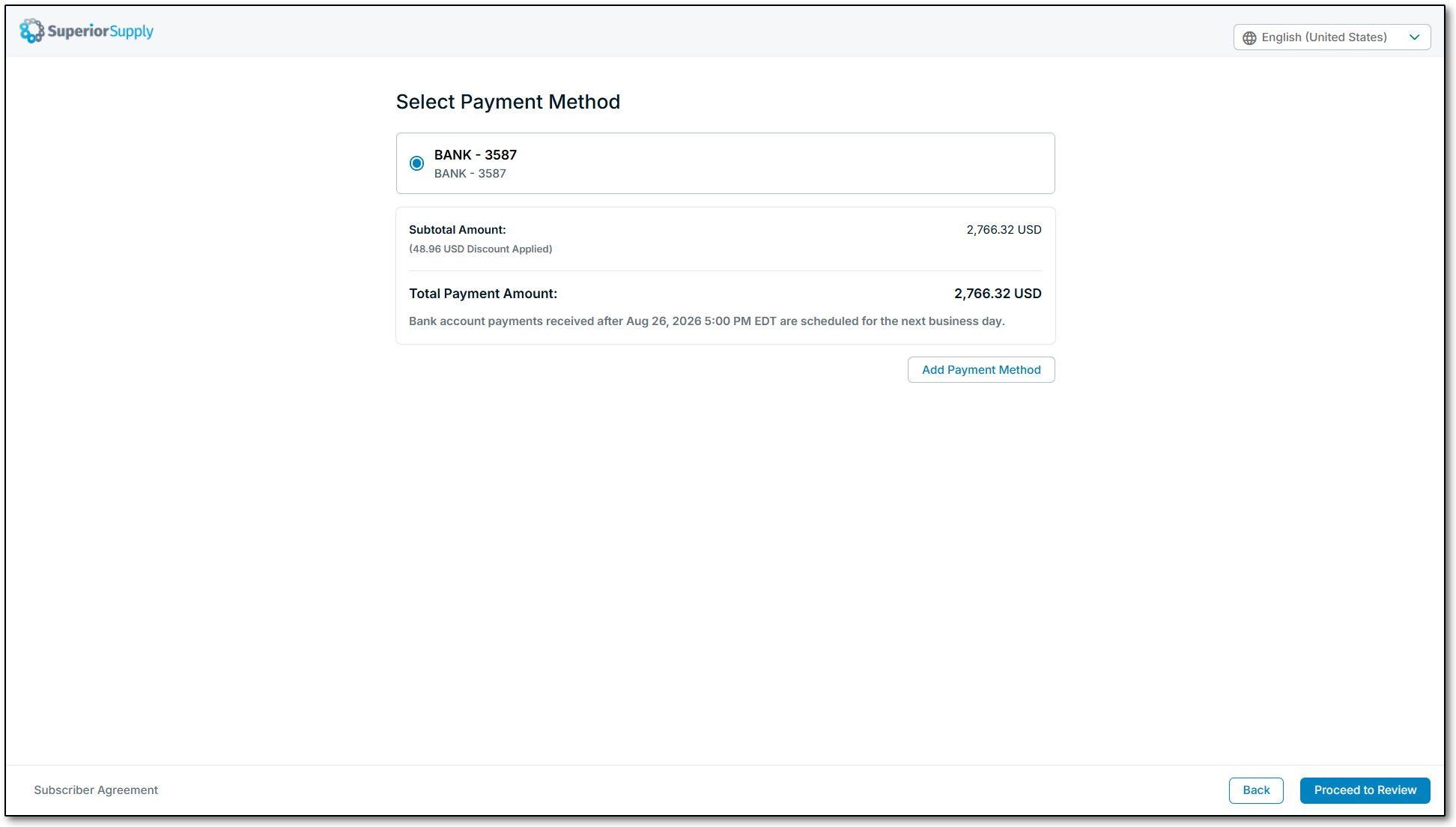
Tip: Review any applicable notes (ex. surcharge fees, restrictions, etc.).
Step 5: Review Payment Details
If you need to make changes, click: Back, otherwise to submit the payment, click: Authorize and Pay.
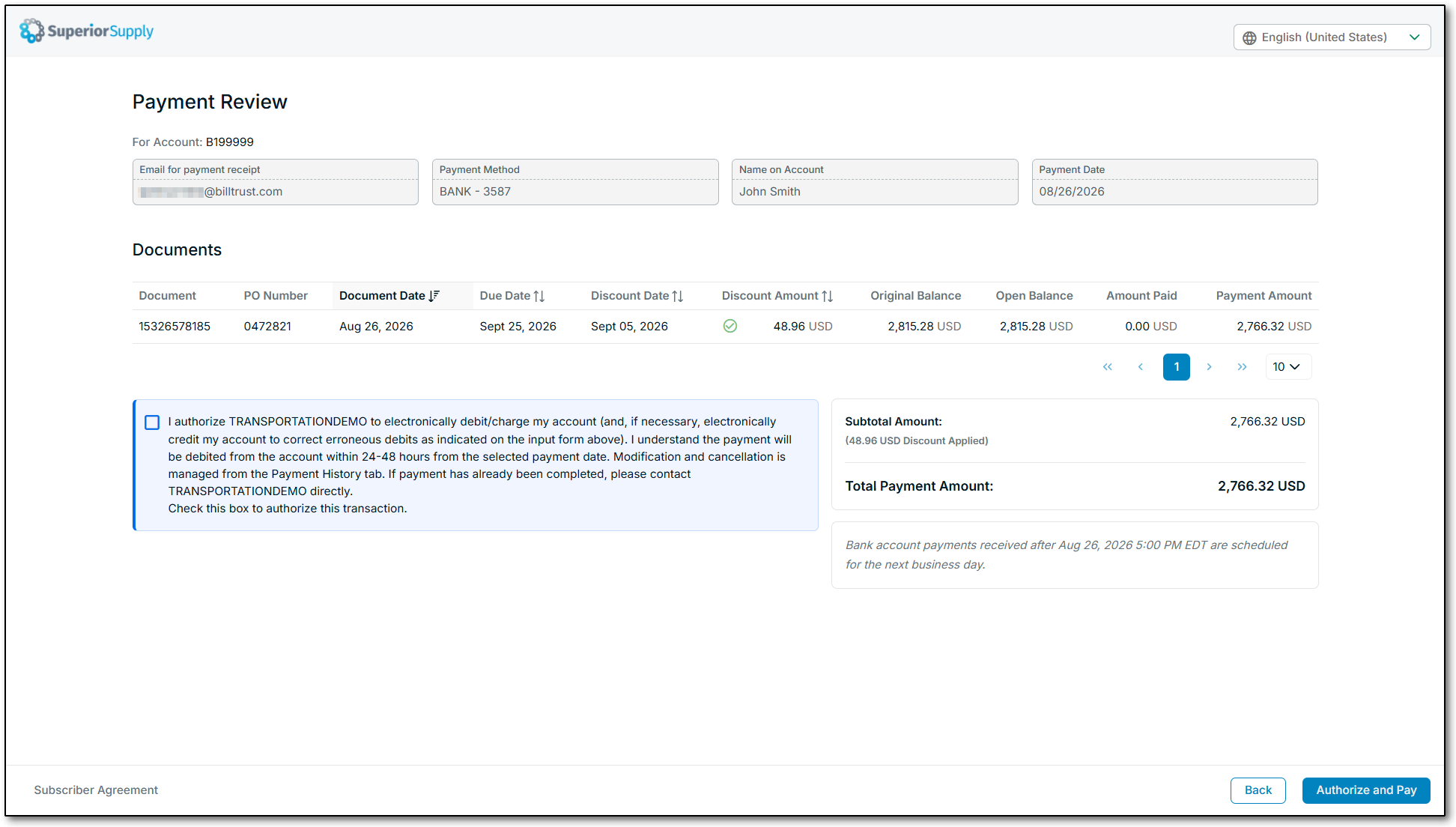
Note: Be sure to accept any authorization statements to ensure your payment can be processed.
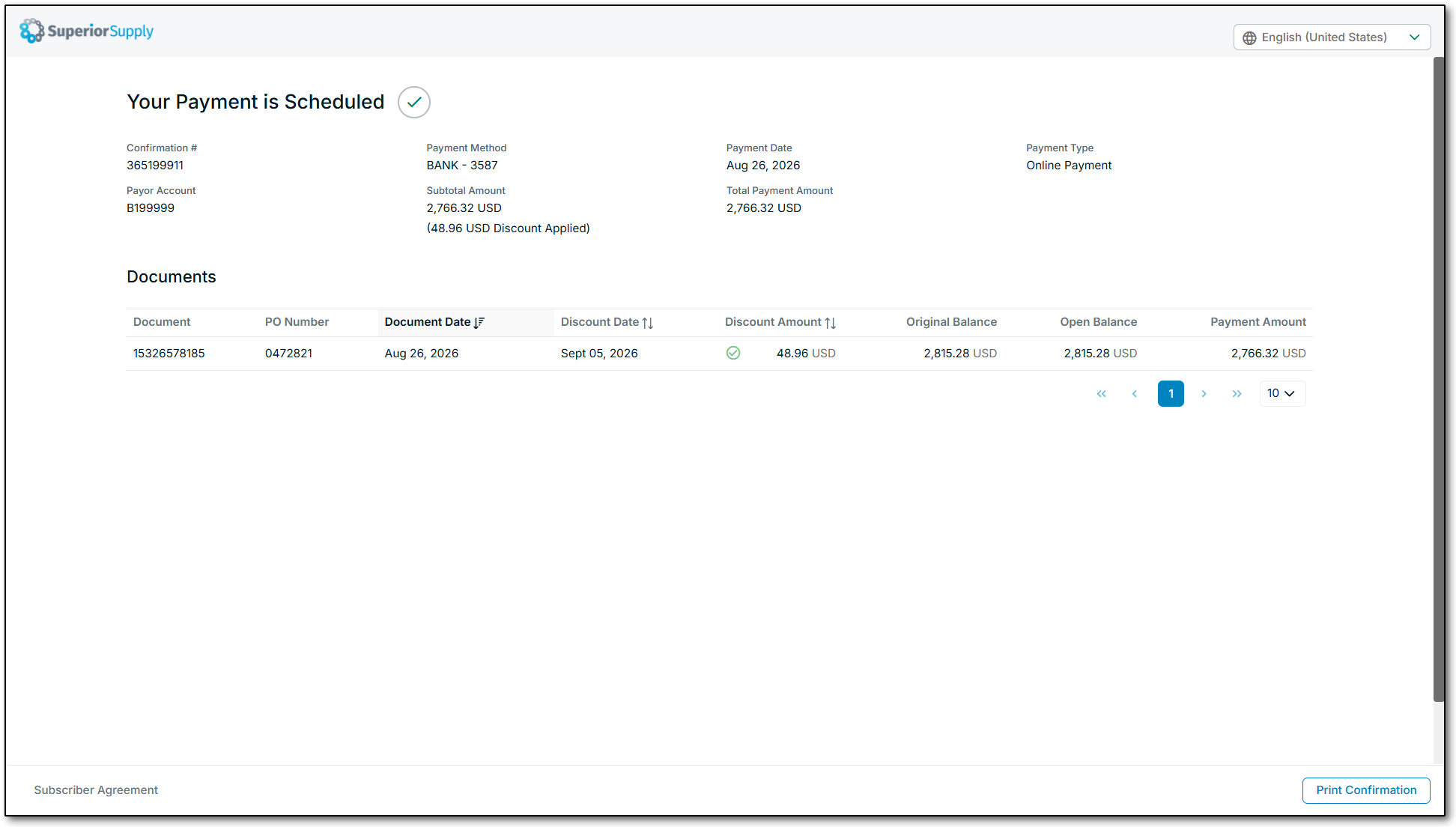
Payment Confirmation
You will receive an email confirmation for your payment. You may also print a confirmation.